
A single invoice can contain lines that need to be coded differently. Take a leasing invoice, for example: the principal repayment and interest relate to the same contract but belong to different accounts. Until now, a line coding rule in Robin could use only one condition. You can now combine up to three, allowing Robin to automatically code even more complex invoices.
How does it work?
A line coding rule is linked to a supplier, while its conditions determine which invoice lines it applies to. Conditions can use data from both the invoice line and the invoice header, such as the line description, contract number, purchase order number, reference number, contact person or delivery location.
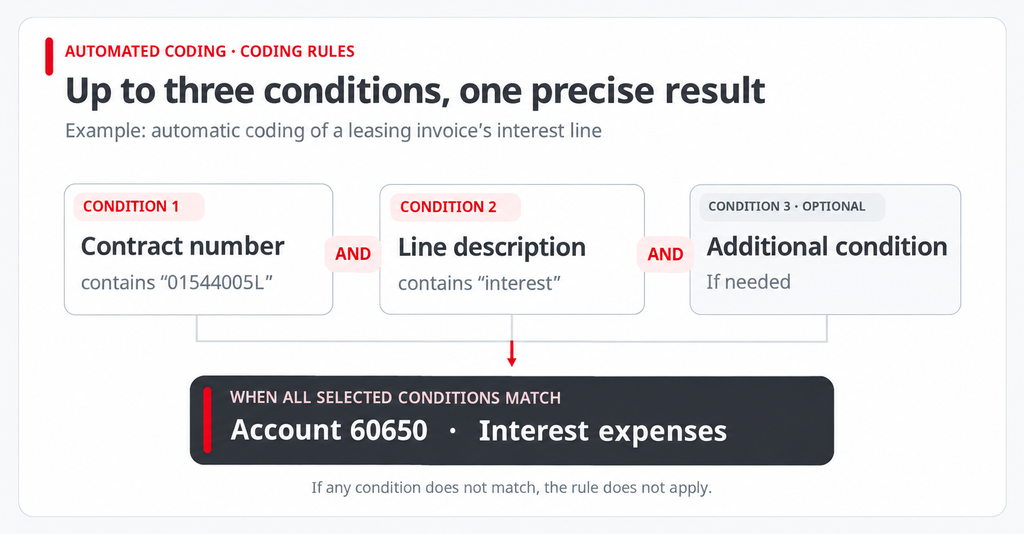
The conditions use AND logic. Robin applies the rule only when every condition is met. If even one condition does not match, the rule is not applied to that invoice line.
Three examples of when multiple conditions make a difference
1. Leasing invoices: principal and interest in separate accounts
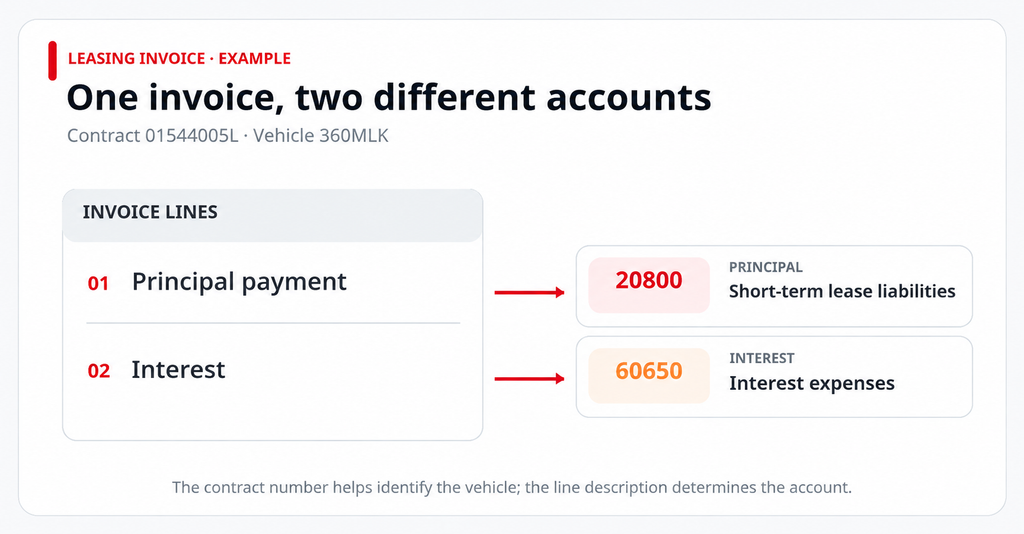
A leasing invoice has two lines under the same contract: principal repayment and interest. The contract number identifies the vehicle, but the line description is also needed to select the right account.
- Principal: contract number contains “01544005L” AND line description contains “principal” → Account 20800 “Short-term lease liabilities”; Vehicle 360MLK.
- Interest: contract number contains “01544005L” AND line description contains “interest” → Account 60650 “Interest expenses”; Vehicle 360MLK.
2. Fuel card invoices: cars, excavators and supplies
A company uses fuel cards for both its cars and production equipment, and buys vehicle supplies from the same fuel station chain. All purchases appear on one monthly invoice. Combining the card number with the line description ensures that each expense is coded correctly.
- Car fuel: card number contains “123” AND line description contains “DIESEL” → Account 44300 “Vehicle fuel”; Vehicle 360MLK.
- Excavator fuel: card number contains “EKS-01” AND line description contains “DIESEL” → Account 40200 “Production equipment fuel”; Equipment EKS-01.
- Vehicle supplies: card number contains “123” AND line description contains “windscreen washer fluid” → Account 44400 “Vehicle maintenance and supplies”; Vehicle 360MLK.
3. The same coffee, different purposes
A fuel station chain buys coffee from the same supplier for its office staff and for resale at its stations. The invoices may also include coffee machine maintenance. By combining the delivery location in the invoice header with the line description, Robin can distinguish office expenses, goods purchased for resale and maintenance costs.
- Office coffee: delivery location contains “Tähe tn” AND line description contains “coffee” → Account 43300 “Office expenses”.
- Coffee for resale: delivery location contains “Rapla” AND line description contains “coffee” → Account 13400 “Goods purchased for resale”; Location “Rapla fuel station”.
- Coffee machine maintenance: delivery location contains “Rapla” AND line description contains “maintenance” → Account 40100 “Equipment maintenance”; Location “Rapla fuel station”.
The account numbers and dimensions in these examples are illustrative; every company uses its own chart of accounts. The benefit is the same in all three cases: invoice lines that previously required manual coding can now be processed automatically using the appropriate rule.
What happens if several rules match the same line?
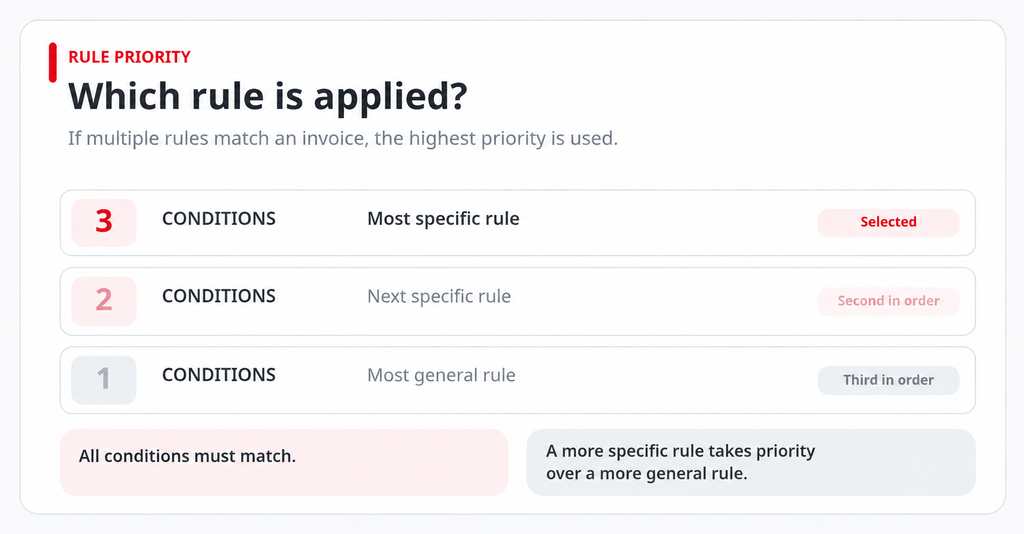
- The most specific rule wins. If rules with one, two and three conditions all match a line, Robin applies the three-condition rule.
- If two matching rules have the same number of conditions, Robin uses the one most recently modified, not necessarily the one most recently created.
- Partial matches do not count. If only two of a rule’s three conditions match, that rule is skipped and Robin looks for the next applicable rule.
The same logic applies when you select rules manually: “Select a rule” → “Invoice line rules” → “Apply”.
How to set up a rule with multiple conditions
- Open the relevant line on an incoming invoice and click “Code”.
- Choose the account and any required dimensions, then start saving the selection as a rule.
- Click “Add condition”, choose a field and check its value. Add a second and third condition if needed.
- Save the rule. Robin will automatically apply it to future invoice lines that meet all the conditions.
The invoice side panel shows how many of the three conditions are in use. Once you have added three, the “Add condition” button becomes disabled. All conditions are visible both in the invoice side panel and under Robin & automation rules → Line coding rules.
Good to know
This feature requires invoice lines to be available, either through an e-invoice or line-level digitisation. Setting up rules also requires permission to manage coding rules.
Your existing rules will continue to work as before. No changes or reconfiguration are needed.
Need a hand?
We’ll be happy to help you set up your first rule with multiple conditions. If your suppliers still send PDF invoices, we can explore whether they can switch to e-invoicing or whether line-level digitisation would be a suitable alternative.
Contact us through the Telema portal, and we’ll get back to you.
 Back to all blog posts